Cost visibility is the foundation of the FinOps Inform stage, enabling organizations to understand where cloud spending occurs and who’s responsible for it. In this hands-on guide, we’ll build a complete cost visibility solution on AWS by deploying tagged resources with Terraform and creating department-specific dashboards in AWS Cost Explorer.
Prerequisites
- AWS Account with appropriate permissions
- Terraform installed (v1.0+)
- AWS CLI configured
- Basic understanding of AWS services and FinOps principles
Part 1: Infrastructure Deployment with Cost Allocation
Step 1: Setting Up the Terraform Project
First, create a project structure for our multi-department infrastructure:
finops-cost-visibility/
├── main.tf
├── variables.tf
├── outputs.tf
├── tags.tf
└── modules/
    ├── engineering/
    ├── finance/
    └── marketing/

Step 2: Define Cost Allocation Tags
Create tags.tf to establish our tagging strategy:
locals {
  common_tags = {
    Project     = "FinOps-Cost-Visibility"
    ManagedBy   = "Terraform"
    Environment = var.environment
  }

  engineering_tags = merge(local.common_tags, {
    Department  = "Engineering"
    CostCenter  = "ENG-001"
    Owner       = "engineering-team@company.com"
  })

  finance_tags = merge(local.common_tags, {
    Department  = "Finance"
    CostCenter  = "FIN-001"
    Owner       = "finance-team@company.com"
  })

  marketing_tags = merge(local.common_tags, {
    Department  = "Marketing"
    CostCenter  = "MKT-001"
    Owner       = "marketing-team@company.com"
  })
}

Step 3: Deploy Department-Specific Resources
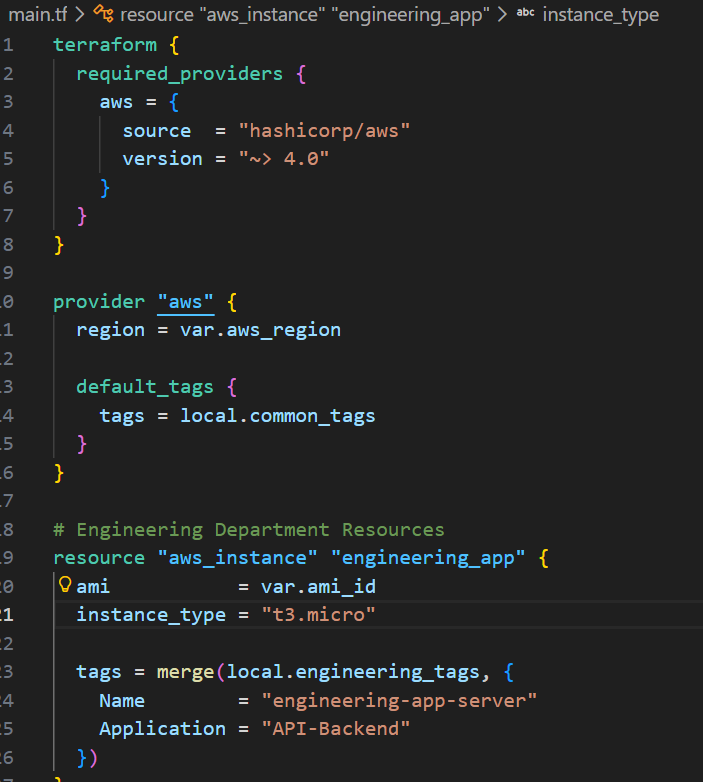
Create main.tf with resources for each department:
terraform {
  required_providers {
    aws = {
      source  = "hashicorp/aws"
      version = "~> 4.0"
    }
  }
}

provider "aws" {
  region = var.aws_region

  default_tags {
    tags = local.common_tags
  }
}

# Engineering Department Resources
resource "aws_instance" "engineering_app" {
  ami           = var.ami_id
  instance_type = "t3.medium"

  tags = merge(local.engineering_tags, {
    Name        = "engineering-app-server"
    Application = "API-Backend"
  })
}

resource "aws_s3_bucket" "engineering_data" {
  bucket = "finops-engineering-data-${var.account_id}"

  tags = merge(local.engineering_tags, {
    Name     = "engineering-data-bucket"
    DataType = "Application-Logs"
  })
}

resource "aws_db_instance" "engineering_db" {
  identifier           = "engineering-postgres"
  engine              = "postgres"
  engine_version      = "15.3"
  instance_class      = "db.t3.micro"
  allocated_storage   = 20
  username            = "appowner"
  password            = var.db_password
  skip_final_snapshot = true

  tags = merge(local.engineering_tags, {
    Name        = "engineering-database"
    Application = "API-Backend"
  })
}

# Finance Department Resources
resource "aws_instance" "finance_reporting" {
  ami           = var.ami_id
  instance_type = "t3.small"

  tags = merge(local.finance_tags, {
    Name        = "finance-reporting-server"
    Application = "Financial-Reporting"
  })
}

resource "aws_s3_bucket" "finance_reports" {
  bucket = "finops-finance-reports-${var.account_id}"

  tags = merge(local.finance_tags, {
    Name     = "finance-reports-bucket"
    DataType = "Financial-Data"
  })
}

# Marketing Department Resources
resource "aws_instance" "marketing_web" {
  ami           = var.ami_id
  instance_type = "t3.small"

  tags = merge(local.marketing_tags, {
    Name        = "marketing-web-server"
    Application = "Campaign-Website"
  })
}

resource "aws_s3_bucket" "marketing_assets" {
  bucket = "finops-marketing-assets-${var.account_id}"

  tags = merge(local.marketing_tags, {
    Name     = "marketing-assets-bucket"
    DataType = "Media-Content"
  })
}

resource "aws_cloudfront_distribution" "marketing_cdn" {
  enabled = true

  origin {
    domain_name = aws_s3_bucket.marketing_assets.bucket_regional_domain_name
    origin_id   = "S3-marketing-assets"
  }

  default_cache_behavior {
    allowed_methods        = ["GET", "HEAD"]
    cached_methods         = ["GET", "HEAD"]
    target_origin_id       = "S3-marketing-assets"
    viewer_protocol_policy = "redirect-to-https"

    forwarded_values {
      query_string = false
      cookies {
        forward = "none"
      }
    }
  }

  restrictions {
    geo_restriction {
      restriction_type = "none"
    }
  }

  viewer_certificate {
    cloudfront_default_certificate = true
  }

  tags = merge(local.marketing_tags, {
    Name        = "marketing-cdn"
    Application = "Campaign-Website"
  })
}
Step 4: Create Variables File
Define variables.tf:
variable "aws_region" {
  description = "AWS region for resources"
  type        = string
  default     = "us-east-1"
}

variable "environment" {
  description = "Environment name"
  type        = string
  default     = "production"
}

variable "account_id" {
  description = "AWS Account ID"
  type        = string
}

variable "ami_id" {
  description = "AMI ID for EC2 instances"
  type        = string
}

variable "db_password" {
  description = "Database password"
  type        = string
  sensitive   = true
}

Step 5: Deploy the Infrastructure
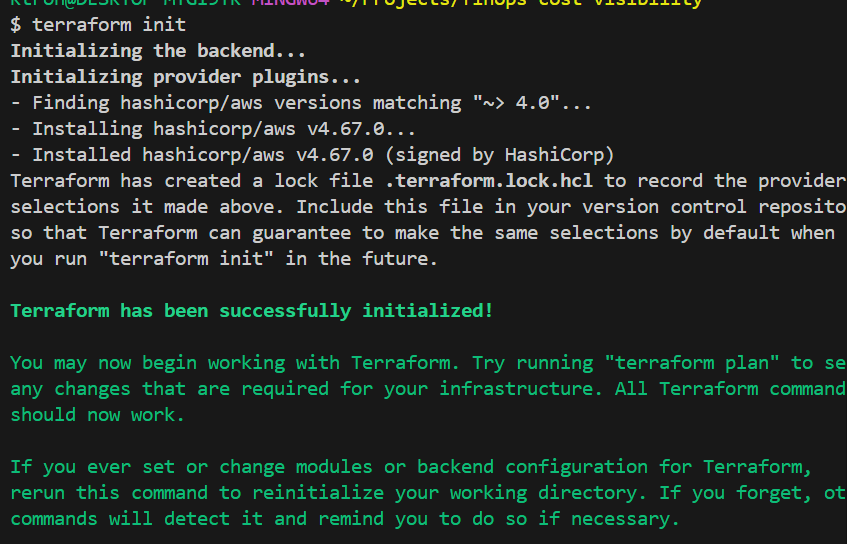
# Initialize Terraform
terraform init

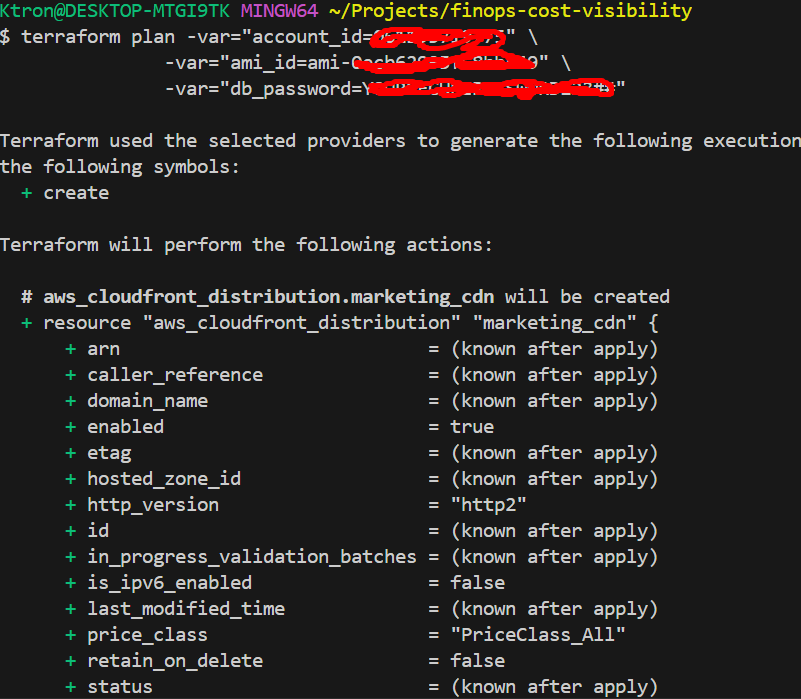
# Review the plan
terraform plan -var="account_id=YOUR_ACCOUNT_ID" \
               -var="ami_id=ami-XXXXXXXXX" \
               -var="db_password=YOUR_SECURE_PASSWORD"

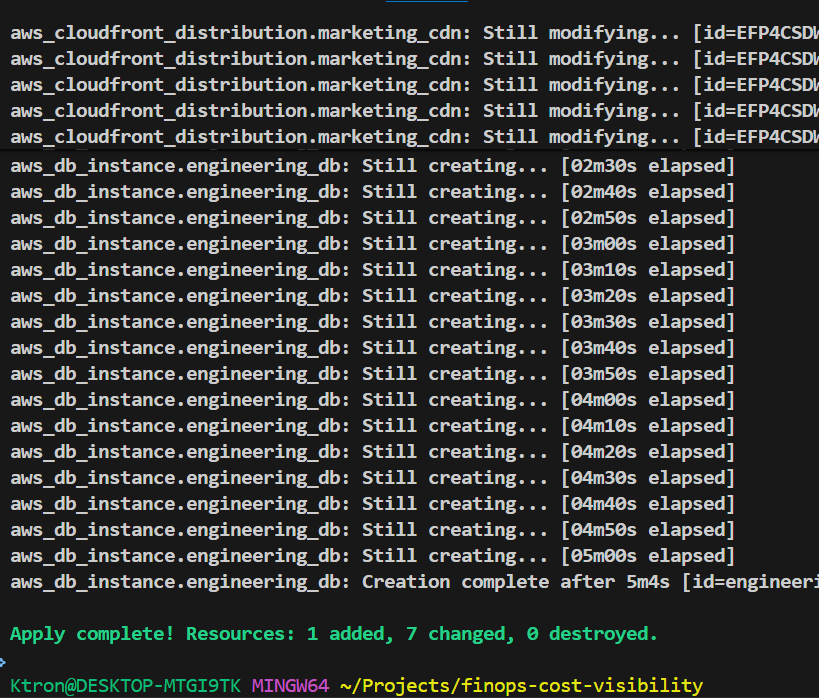
# Deploy resources
terraform apply -var="account_id=YOUR_ACCOUNT_ID" \
                -var="ami_id=ami-XXXXXXXXX" \
                -var="db_password=YOUR_SECURE_PASSWORD"
Step 6: Activate Cost Allocation Tags in AWS
- Navigate to AWS Billing Console → Cost Allocation Tags
- Activate the following user-defined tags:
- Department
- CostCenter
- Owner
- Application
- Environment
- Project
Note: Tags take 24 hours to appear in Cost Explorer after activation.


Setting Up AWS Data Exports
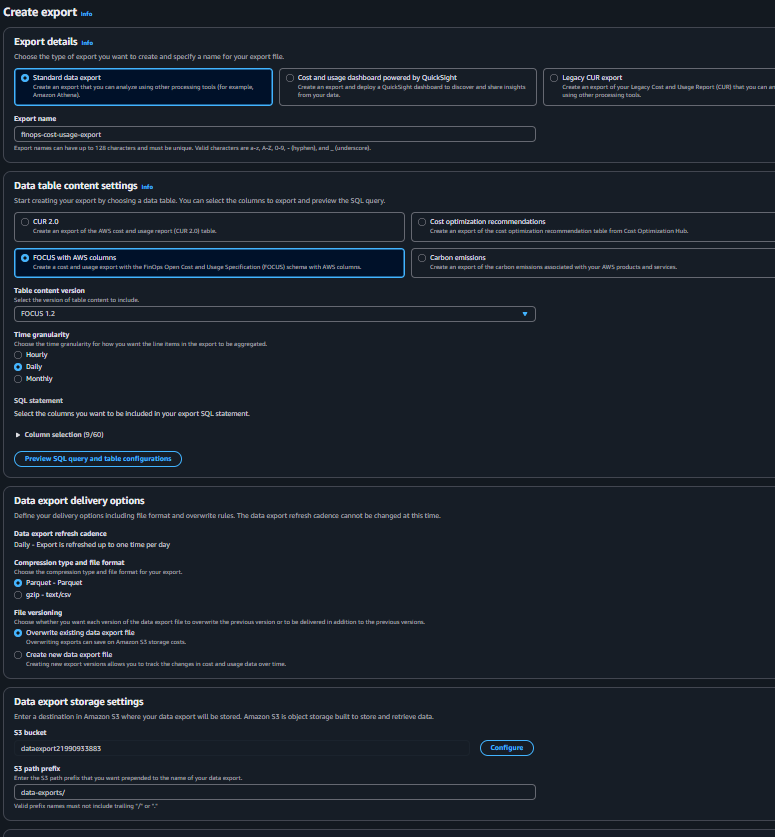
Step 1: Create Data Export via AWS Console
- Navigate to Data Exports
- Go to AWS Billing Console → Data Exports
- Click “Create export”
- Configure Export Settings
- Export name:
finops-cost-usage-export - Export type: Select “Standard data export”
- Data refresh: Enable “Include resource IDs”
- Time granularity:
DAILY
- Export name:
- Configure S3 Destination
- S3 bucket:
<ur-bucket-name> - S3 prefix:
data-exports/ - Compression:
Parquet(best for Athena)
- S3 bucket:
- Review and Create
- Review settings
- Create export
Set Up Athena
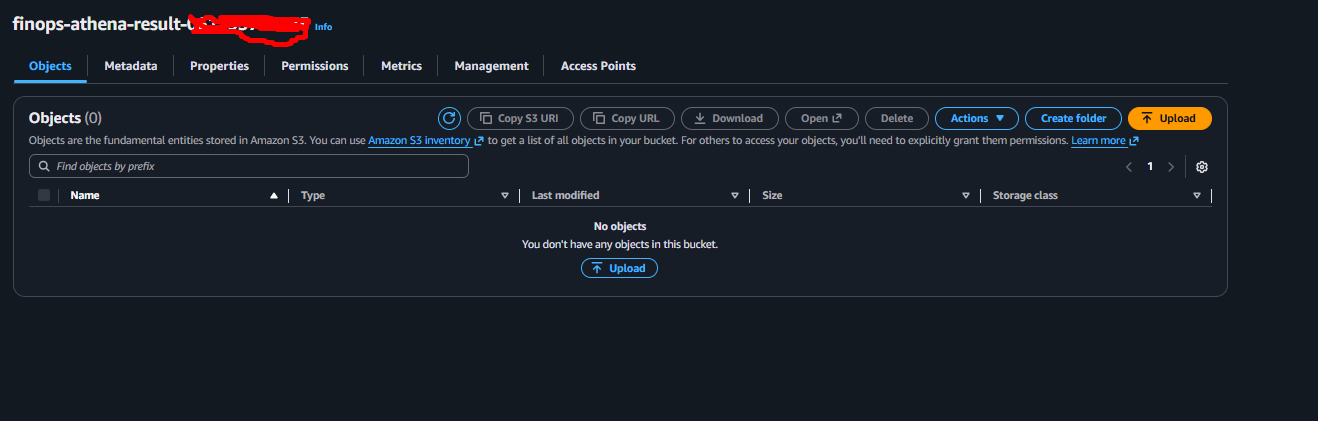
Create S3 Bucket for Athena Results
- Navigate to S3
- Create another bucket:
finops-athena-results-YOUR_ACCOUNT_ID - Same region as your data exports bucket
- Keep default settings
- Create another bucket:
Create Athena Database
- Navigate to Athena
- Go to AWS Console → Athena
- If first time, you’ll see a setup prompt
- Set Query Result Location
- Click “Settings” (or “Manage” → “Settings”)
- Query result location:
s3://finops-athena-results-YOUR_ACCOUNT_ID/queries/ - Click “Save”
- Create Database
- In the query editor, run:
CREATE DATABASE IF NOT EXISTS finops_cost_data
COMMENT 'Database for FinOps cost and usage analysis';
- Click “Run”
- Verify database appears in left sidebar


Set Up AWS Glue Crawler
Why Glue Crawler? It automatically discovers the schema of your Data Export files and creates tables in Athena.
- Navigate to AWS Glue
- Go to AWS Console → AWS Glue
- Click “Crawlers” in left menu
- Create Crawler
- Click “Create crawler”
- Name:
finops-cost-data-crawler - Click “Next”
- Configure Data Source
- Add data source: S3
- S3 path:
s3://finops-data-exports-YOUR_ACCOUNT_ID/data-exports/ - Click “Add an S3 data source”
- Click “Next”
- Create IAM Role
- Choose “Create new IAM role”
- Role name:
AWSGlueServiceRole-FinOps - Click “Next”
- Set Output Database
- Target database: Select
finops_cost_data - Table name prefix: (leave blank or use
cur_) - Click “Next”
- Target database: Select
- Set Crawler Schedule
- Frequency: Daily (or as needed)
- Start time: Choose a time after your data export typically arrives (e.g., 8 AM)
- Click “Next”
- Review and Create
- Review settings
- Click “Create crawler”
- Run Crawler Immediately
- Select your crawler
- Click “Run”
- Wait for status to show “Succeeded” (may take 5-10 minutes)
Note: After the crawler runs successfully, you’ll see a new table in your finops_cost_data database!


4.4: Verify Table Creation
- Go Back to Athena
- Navigate to Athena console
- Select database:
finops_cost_data - You should see a table (likely named something like
cost_and_usage_report)
- Test Query
- Run a simple test query:
SELECT * FROM cost_and_usage_report LIMIT 10;
If you see results, congratulations! Your setup is complete! 🎉

Step 5: Create Department-Specific Athena Views (Console)
Now let’s create SQL views for each department. In Athena query editor, run these queries one by one:
View 1: Engineering Department Costs
CREATE OR REPLACE VIEW engineering_costs AS
SELECT
    billing_period,
    regionname,
    servicename AS service,
    resourcetype AS resource_type,
    tags['user:Application'] AS application,
    chargecategory AS charge_type,
    COUNT(*) as line_items
FROM
    data
WHERE
    tags['user:Department'] = 'Engineering'
    AND chargecategory != 'Tax'
GROUP BY
    billing_period,
    regionname,
    servicename,
    resourcetype,
    tags['user:Application'],
    chargecategory
ORDER BY
    billing_period DESC,
    line_items DESC;
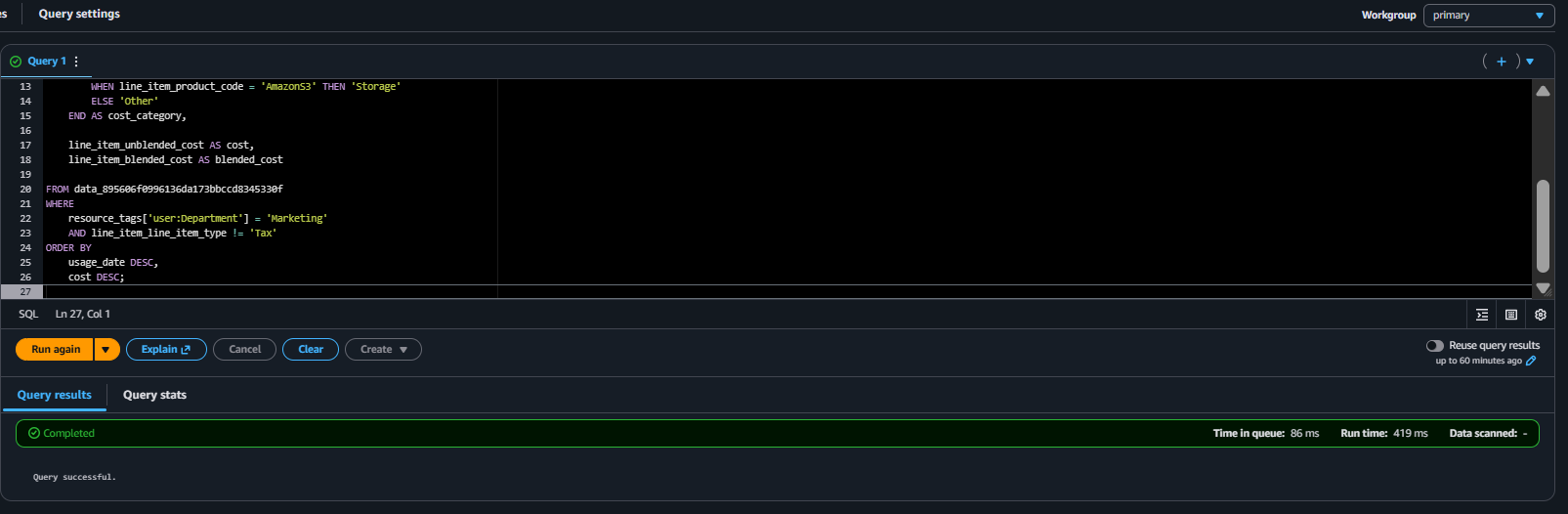
Click “Run” and you should see “Query successful” message.

View 2: Finance Department Costs
CREATE OR REPLACE VIEW finance_costs AS
SELECT
    billing_period,
    regionname,
    servicename AS service,
    resourcetype AS resource_type,
    tags['user:Application'] AS application,
    chargecategory AS charge_type,
    COUNT(*) as line_items
FROM
    data
WHERE
    tags['user:Department'] = 'Finance'
    AND chargecategory != 'Tax'
GROUP BY
    billing_period,
    regionname,
    servicename,
    resourcetype,
    tags['user:Application'],
    chargecategory
ORDER BY
    billing_period DESC,
    line_items DESC;

View 3: Marketing Department Costs
CREATE OR REPLACE VIEW marketing_costs AS
SELECT
    billing_period,
    regionname,
    servicename AS service,
    servicecategory AS cost_category,
    resourcetype AS resource_type,
    tags['user:Application'] AS application,
    chargecategory AS charge_type,
    COUNT(*) as line_items
FROM
    data
WHERE
    tags['user:Department'] = 'Marketing'
    AND chargecategory != 'Tax'
GROUP BY
    billing_period,
    regionname,
    servicename,
    servicecategory,
    resourcetype,
    tags['user:Application'],
    chargecategory
ORDER BY
    billing_period DESC,
    line_items DESC;
View 4: Executive Summary
CREATE OR REPLACE VIEW executive_summary AS
SELECT
    billing_period,
    tags['user:Department'] AS department,
    tags['user:CostCenter'] AS cost_center,
    servicename AS service,
    servicecategory AS service_category,
    regionname,
    COUNT(*) AS total_line_items,
    COUNT(DISTINCT resourcetype) AS unique_resources
FROM
    data
WHERE
    tags['user:Department'] IS NOT NULL
    AND chargecategory != 'Tax'
GROUP BY
    billing_period,
    tags['user:Department'],
    tags['user:CostCenter'],
    servicename,
    servicecategory,
    regionname
ORDER BY
    billing_period DESC,
    total_line_items DESC;
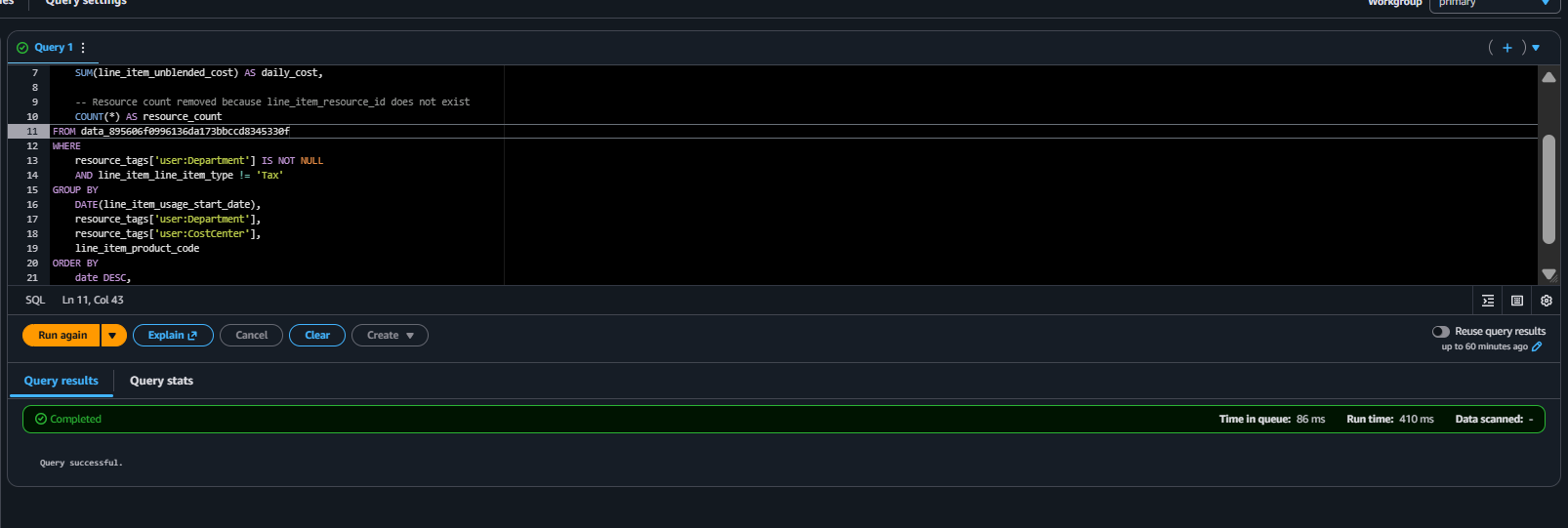
Verify Views Created:
- In Athena left sidebar, expand “Views” under your database
- You should see all 4 views listed

Test Your Views with Sample Queries
Now let’s query each view to see department-specific data:
Test Engineering View
SELECT
    billing_period,
    regionname,
    service,
    application,
    charge_type,
    SUM(line_items) as total_items
FROM engineering_costs
GROUP BY
    billing_period,
    regionname,
    service,
    application,
    charge_type
ORDER BY
    billing_period DESC,
    total_items DESC;

Test Finance View
SELECT
    billing_period,
    service,
    application,
    SUM(line_items) as total_items
FROM finance_costs
GROUP BY
    billing_period,
    service,
    application
ORDER BY
    total_items DESC;

Test Marketing View
SELECT
    billing_period,
    service,
    cost_category,
    application,
    SUM(line_items) as total_items
FROM marketing_costs
GROUP BY
    billing_period,
    service,
    cost_category,
    application
ORDER BY
    total_items DESC;

Test Executive Summary
SELECT
    billing_period,
    department,
    cost_center,
    service,
    SUM(total_line_items) as total_items,
    SUM(unique_resources) as total_resources
FROM executive_summary
GROUP BY
    billing_period,
    department,
    cost_center,
    service
ORDER BY
    billing_period DESC,
    total_items DESC;

QuickSight Initial Setup
Step 1: Sign Up for Amazon QuickSight
- Navigate to QuickSight
- Go to AWS Console → Search “QuickSight”
- Click “Sign up for QuickSight” (if first time)
- Choose Edition
- Select Enterprise Edition (recommended for production)
- Or Standard Edition (for testing)
- Click “Continue”
- Configure QuickSight Account
- QuickSight account name:
finops-analytics - Notification email: Your email address
- QuickSight region: Same as your Athena region
- Click “Finish”
- QuickSight account name:
- Grant Permissions
- Enable: Amazon Athena ✓
- Enable: Amazon S3 ✓
- Click “Choose S3 buckets”
- Select:
finops-data-exports-YOUR_ACCOUNT_ID✓finops-athena-results-YOUR_ACCOUNT_ID✓
- Click “Finish”


Part 2: Connect QuickSight to Athena
Step 1: Create Athena Data Source
- Go to Datasets
- In QuickSight console, click “Datasets” in left menu
- Click “New dataset”
- Select Athena
- Click on “Athena” card
- Data source name:
finops-athena-source - Athena workgroup:
primary(or your custom workgroup) - Click “Create data source”
- Choose Database and Table
- Catalog:
AwsDataCatalog - Database:
finops_cost_data - Tables: Select
engineering_costsfirst - Click “Select”
- Catalog:
- Configure Data Import
- Choose “Directly query your data” (SPICE can be enabled later for better performance)
- Click “Visualize”

Part 3: Create Engineering Department Dashboard
Step 1: Set Up Engineering Dataset
- Edit Dataset (if needed)
- In QuickSight, go to “Datasets”
- Click on
engineering_costsdataset - Click “Edit dataset”
- Add Calculated Fields (Optional)
- Click “Add calculated field”
- Month Name:
formatDate(parseDate(billing_period, "yyyy-MM"), "MMM yyyy")
- Click “Save”
Step 2: Build Engineering Dashboard
- Create Analysis
- From Datasets, click
engineering_costs - Click “Create analysis”
- Analysis name:
Engineering Cost Analysis
- From Datasets, click
- Visual 1: Costs by Service (Donut Chart)
- Click “Add” → “Add visual”
- Visual type: Donut chart
- Value:
line_items(Sum) - Group by:
service - Title: “Cost Distribution by Service”
- Visual 2: Costs Over Time (Line Chart)
- Click “Add” → “Add visual”
- Visual type: Line chart
- X-axis:
billing_period - Value:
line_items(Sum) - Color:
service - Title: “Monthly Cost Trend by Service”
- Visual 3: Costs by Region (Bar Chart)
- Click “Add” → “Add visual”
- Visual type: Horizontal bar chart
- Y-axis:
regionname - Value:
line_items(Sum) - Title: “Costs by AWS Region”
- Visual 4: Costs by Application (Table)
- Click “Add” → “Add visual”
- Visual type: Table
- Rows:
applicationserviceresource_type
- Values:
line_items(Sum) - Title: “Detailed Costs by Application”
- Visual 5: Charge Type Breakdown (Stacked Bar)
- Click “Add” → “Add visual”
- Visual type: Stacked bar chart
- X-axis:
billing_period - Value:
line_items(Sum) - Group/Color:
charge_type - Title: “Cost Breakdown by Charge Type”
- Add Filters
- Click “Filter” in left panel
- Add filter:
billing_period- Filter type: Time range
- Select last 6 months
- Add filter:
service- Filter type: Multi-select
- Make it a control (so users can select)
- Publish Dashboard
- Click “Share” → “Publish dashboard”
- Dashboard name:
Engineering Department Costs - Click “Publish dashboard”
Part 2: Creating Department-Specific Dashboards
Manual Dashboard Creation in AWS Cost Explorer
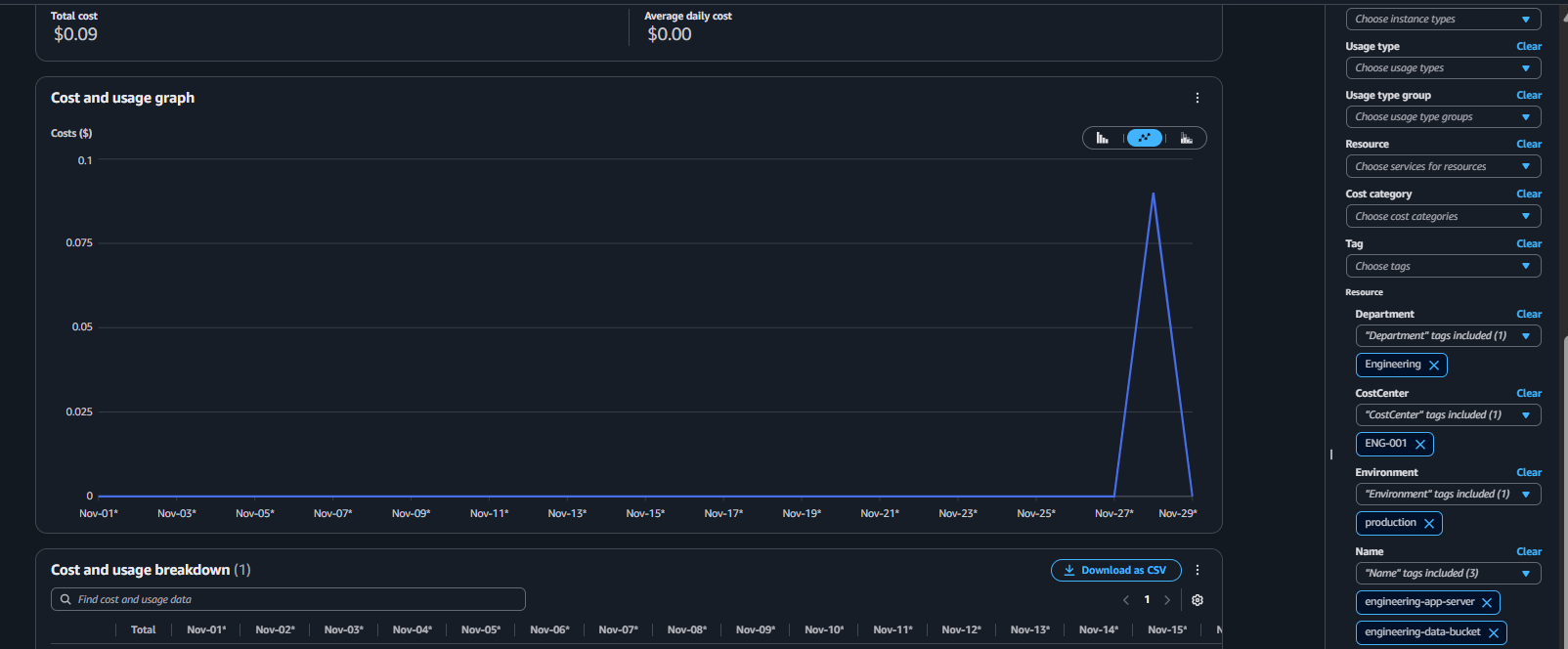
Dashboard 1: Engineering Department View
- Navigate to Cost Explorer
- Go to Cost Management → Cost Explorer
- Create Engineering Cost Report
- On the right side, you have:
- Time section
- Group by
- Filters
- Chart type buttons
- Save to report library
- Set Your Time Range
- On the right panel:
- Time → Standard
- Date Range: choose
Last 3 Months - Granularity:
Change to Daily
(Important: this defaults to Monthly) - Apply Filters
- Filter by Tag: Department = “Engineering”
- Group by: Service
- Customize Visualization
- Chart type: Stacked bar chart
- Show: Costs
- Additional grouping: Add “Application” tag
- Add Cost Breakdown Section
- Create another chart grouped by: CostCenter, Application
- This shows cost distribution across engineering projects
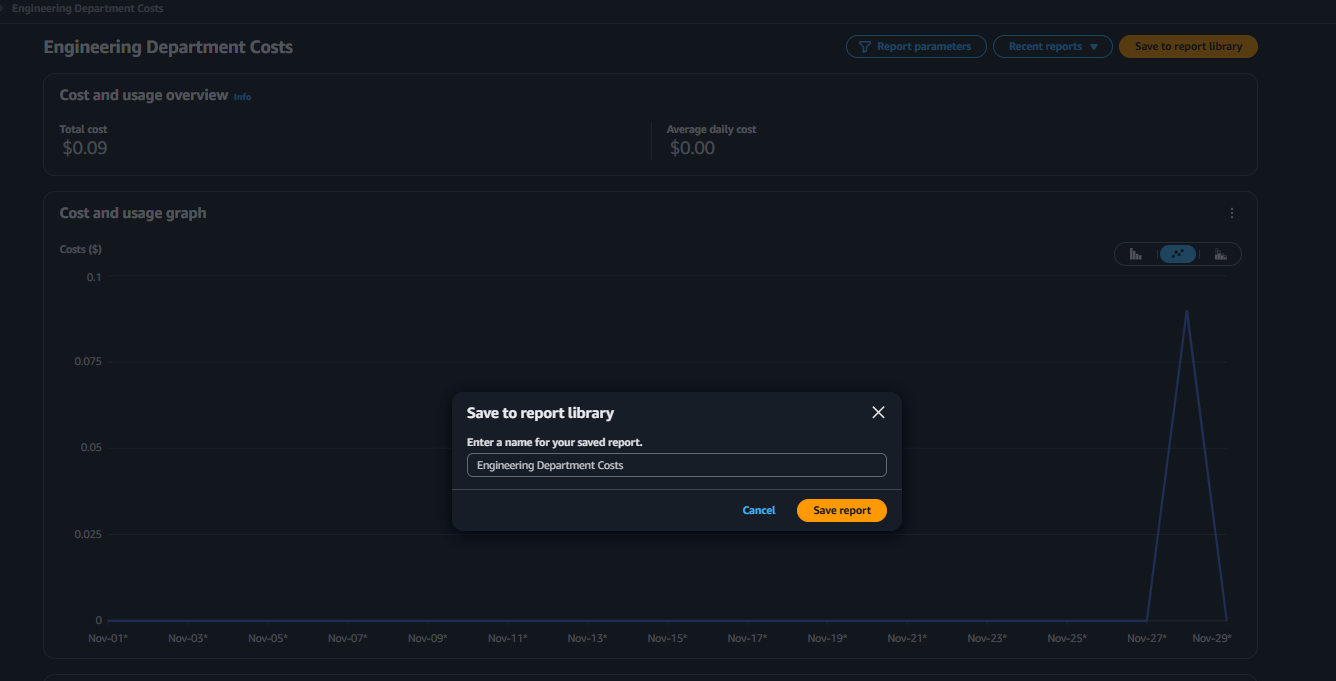
- Save the Report
- Click “Save as” → “Save report”
- Add to dashboard

Dashboard 2: Finance Department View
- Create Finance Cost Report
- Name: “Finance Department Costs”
- Filter by Tag: Department = “Finance”
- Group by: Service and Resource
- Add Budget Tracking
- Include budget vs. actual spending
- Set up anomaly detection alerts
- Cost Trend Analysis
- Add month-over-month comparison
- Include forecast for next 30 days

Dashboard 3: Marketing Department View
- Create Marketing Cost Report
- Name: “Marketing Department Costs”
- Filter by Tag: Department = “Marketing”
- Group by: Service (focus on CloudFront, S3)
- Campaign-Specific View
- Group by “Application” tag to see per-campaign costs
- Add data transfer costs analysis
- ROI Metrics
- Include custom metrics for cost per campaign
- Add notes section for campaign performance
Creating a Unified Executive Dashboard
- Multi-Department Overview
- Name: “Executive Cost Overview”
- Group by: Department
- Time period: Current month vs. previous month
- Key Metrics to Include
- Total spend by department
- Top 5 cost-driving services
- Month-over-month growth rate
- Budget utilization percentage
- Cost Anomaly Section
- Enable anomaly detection
- Set thresholds for alerts
- Review daily spikes or unusual patterns
Next Steps: The Optimize Phase
Now that you have visibility (Inform), the next phase is Optimize:
- Identify Waste: Use your dashboards to find idle resources
- Right-Size: Match instance types to actual usage
- Use Committed Use Discounts: Reserved Instances and Savings Plans
- Automate Schedules: Stop dev/test resources after hours
- Storage Optimization: Delete old snapshots, use lifecycle policies

Conclusion
We now have a production-ready FinOps cost visibility platform! Here’s what we accomplished:
✅ Deployed tagged infrastructure with Terraform
✅ Created three department-specific dashboards
✅ Set up automated daily and weekly reports
✅ Configured budget alerts and anomaly detection
✅ Built a foundation for ongoing cost optimization
The Inform phase of FinOps is complete. You have the visibility needed to make data-driven decisions about your cloud spending.






 Adedeji Awolesi
Leave a comment