
This comprehensive guide shows you how to set up AWS cost budget alerts delivered to Slack. You’ll receive real-time notifications when your AWS spending exceeds defined thresholds, helping you monitor cloud costs more effectively.
Architecture Overview
Complete Flow
AWS Budgets (monitors spending) ↓Amazon SNS Topic (receives alerts) ↓ ┌──┴──┐ ↓ ↓AWS Chatbot → Slack Channel (team notifications)How It Works
- AWS Budgets tracks your spending against defined limits
- Amazon SNS receives alerts when thresholds are crossed
- AWS Chatbot processes and sends formatted messages to Slack
Prerequisites
Required for Both Integrations
AWS Account with permissions for:
- AWS Budgets
- Amazon SNS
- IAM (Identity and Access Management)
For Slack Integration
Slack Workspace where you have permission to:
- Add apps/integrations
- Create or access channels
- Configure webhooks
Step 1.1: Create Your AWS Budget
First, let’s set up the budget that will trigger our alerts.
Via AWS Console
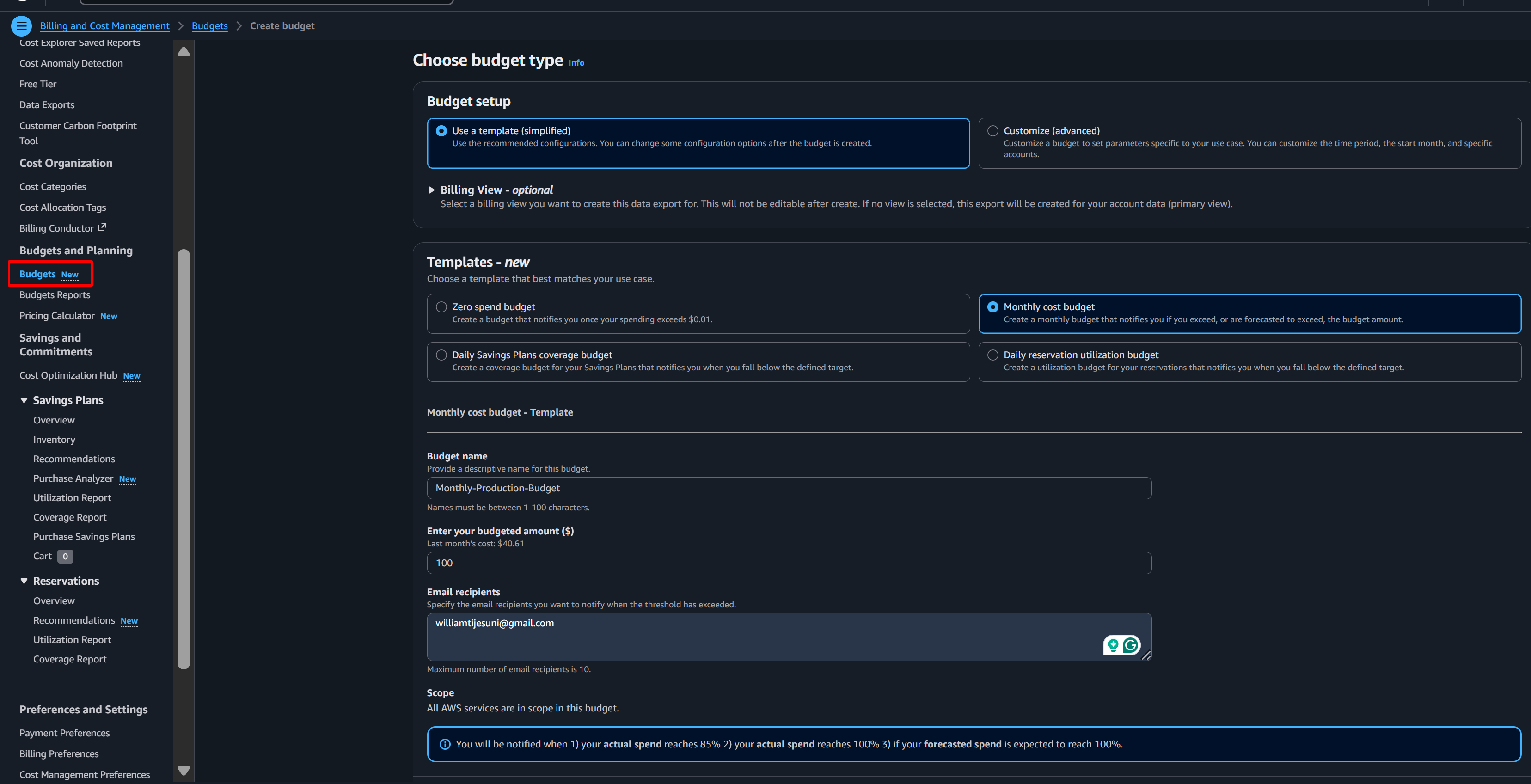
- Navigate to AWS Budgets
- Go to AWS Console
- Search for “Billing and cost Management”
- Select Budget under the Budget and planning tab by the left bane
- Click “Monthly Create budget” under templates
- Choose Budget Type
- Select “Cost budget” (most common)
- Click “Next”
- Set Budget Details
- Budget name:
Monthly-Production-Budget(choose a descriptive name) - Period: Monthly
- Budget effective dates: Recurring budget
- Start month: Current month
- Budgeting method: Fixed
- Budgeted amount: Enter your monthly budget (e.g.,
100for $3,000)
- Budget name:
- Configure Budget Scope (optional)
- Filter by specific services, tags, or regions
- Or leave as “All AWS services” to monitor total spending
- Click “Next” – Don’t configure alerts yet; we’ll do this after setting up Chatbot
Via AWS CLI (Alternative)
aws budgets create-budget \ --account-id YOUR_ACCOUNT_ID \ --budget file://budget.jsonCreate budget.json:
{ "BudgetName": "Monthly-Production-Budget", "BudgetLimit": { "Amount": "3000", "Unit": "USD" }, "TimeUnit": "MONTHLY", "BudgetType": "COST"}Important: Don’t set up alert notifications yet. We’ll add those after configuring AWS Chatbot.
Step 1.2: Set Up Slack Channel
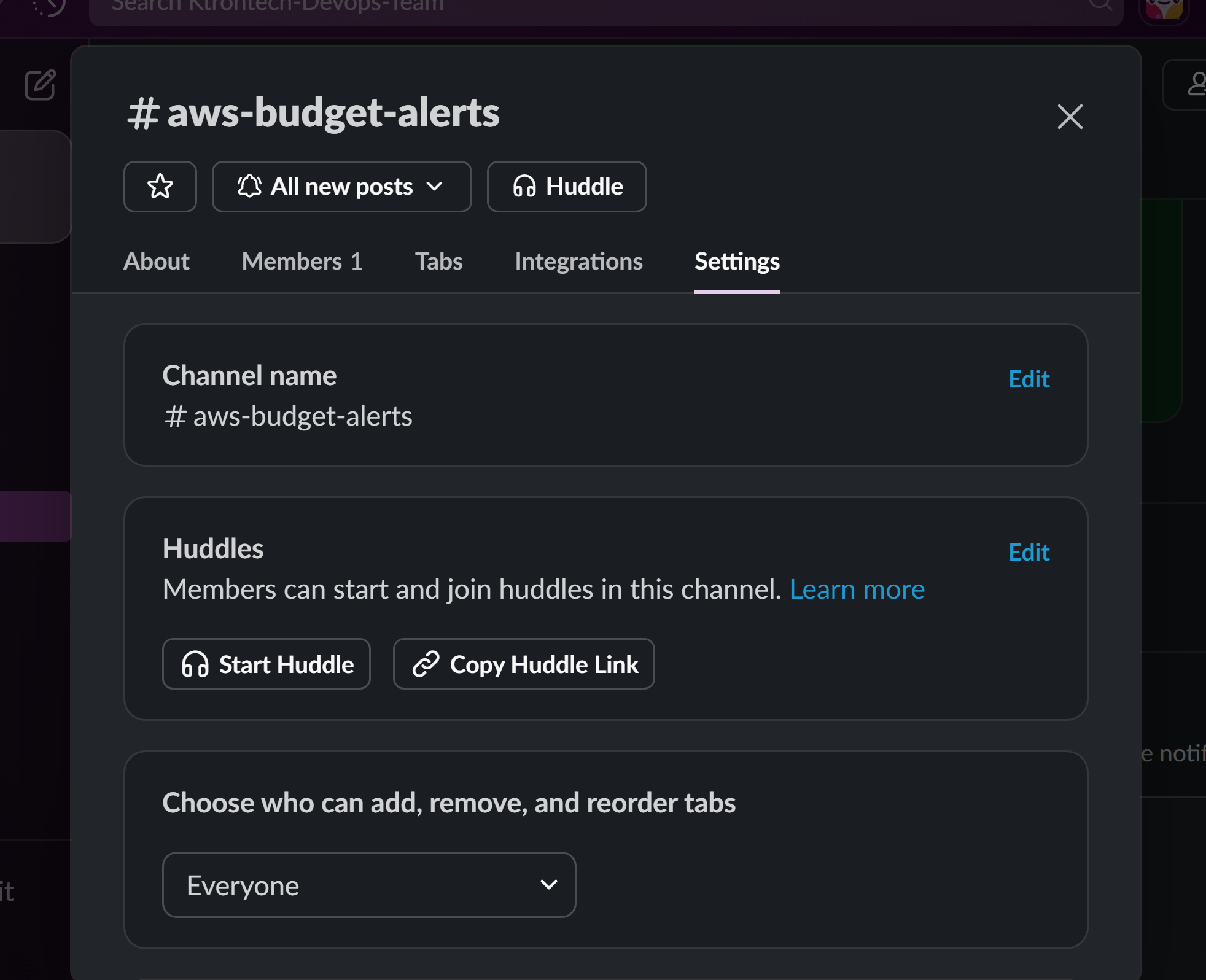
- Create a Dedicated Channel (recommended)
- In Slack, create a new channel:
#aws-budget-alerts - Make it public (easier for initial setup)
- You can make it private later if needed
- In Slack, create a new channel:
- Get Channel Information
- Right-click on the channel name
- Choose “Copy link”
- The link looks like:
https://yourworkspace.slack.com/archives/C01ABCDEF123 - The Channel ID is the last part:
C01ABCDEF123 - Save this ID for later
Step 1.3: Configure AWS Chatbot with Slack
Method A: Using AWS Console (Recommended for Beginners)
- Navigate to AWS Chatbot
- Go to AWS Console
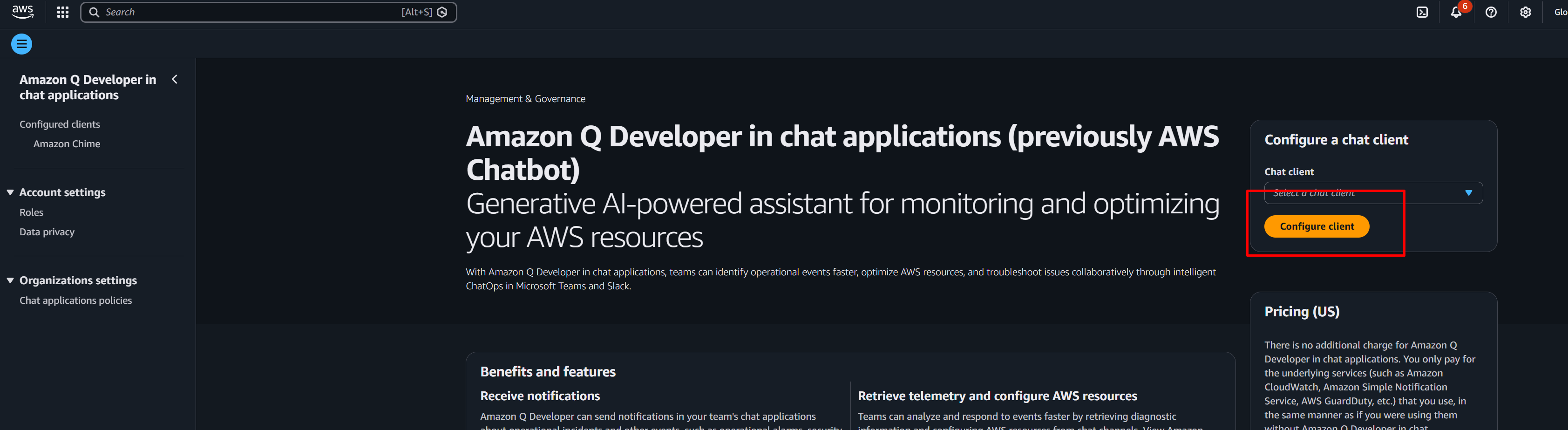
- Search for “AWS Chatbot” or “Amazon Q Developer in chat applications”
- You’ll be redirected to the new Amazon Q Developer console (AWS Chatbot is now part of Amazon Q)
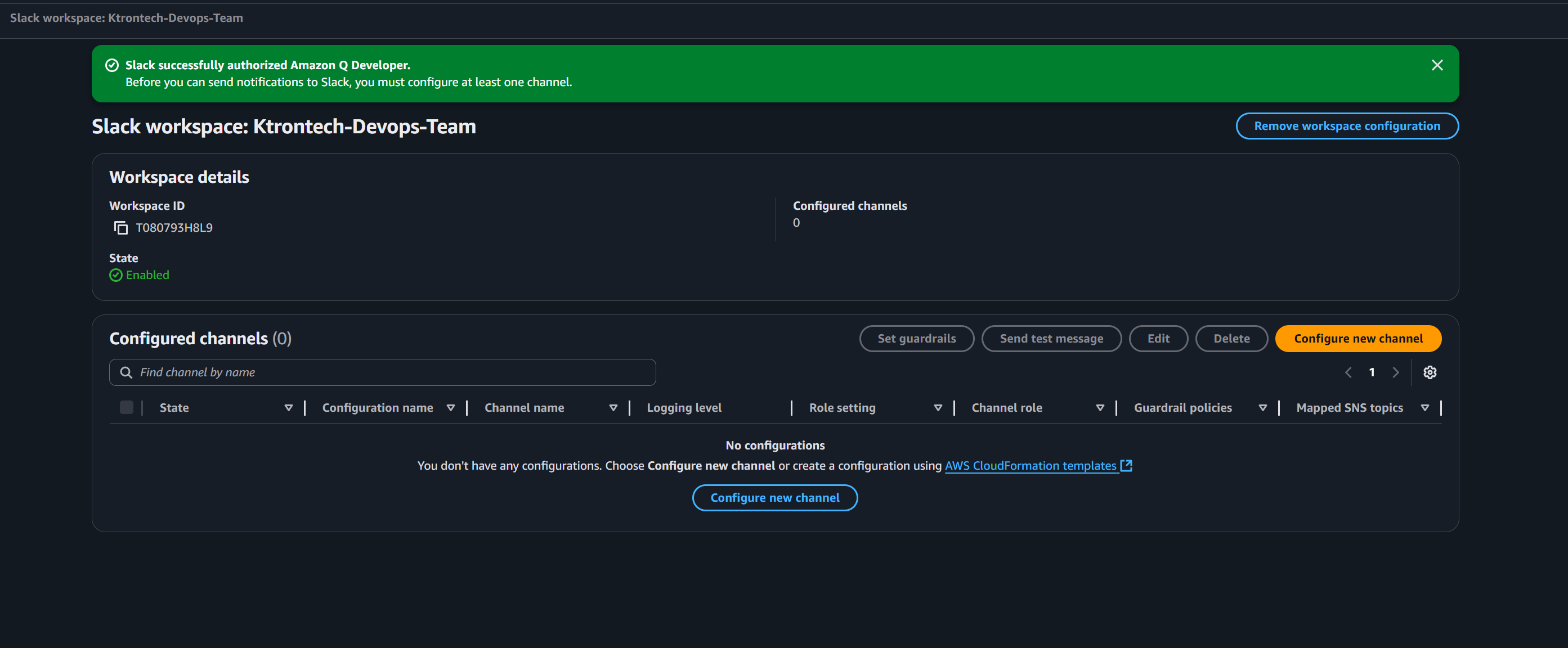
- Configure Slack Client
- Click “Configure new client”
- Select “Slack”
- Click “Configure”
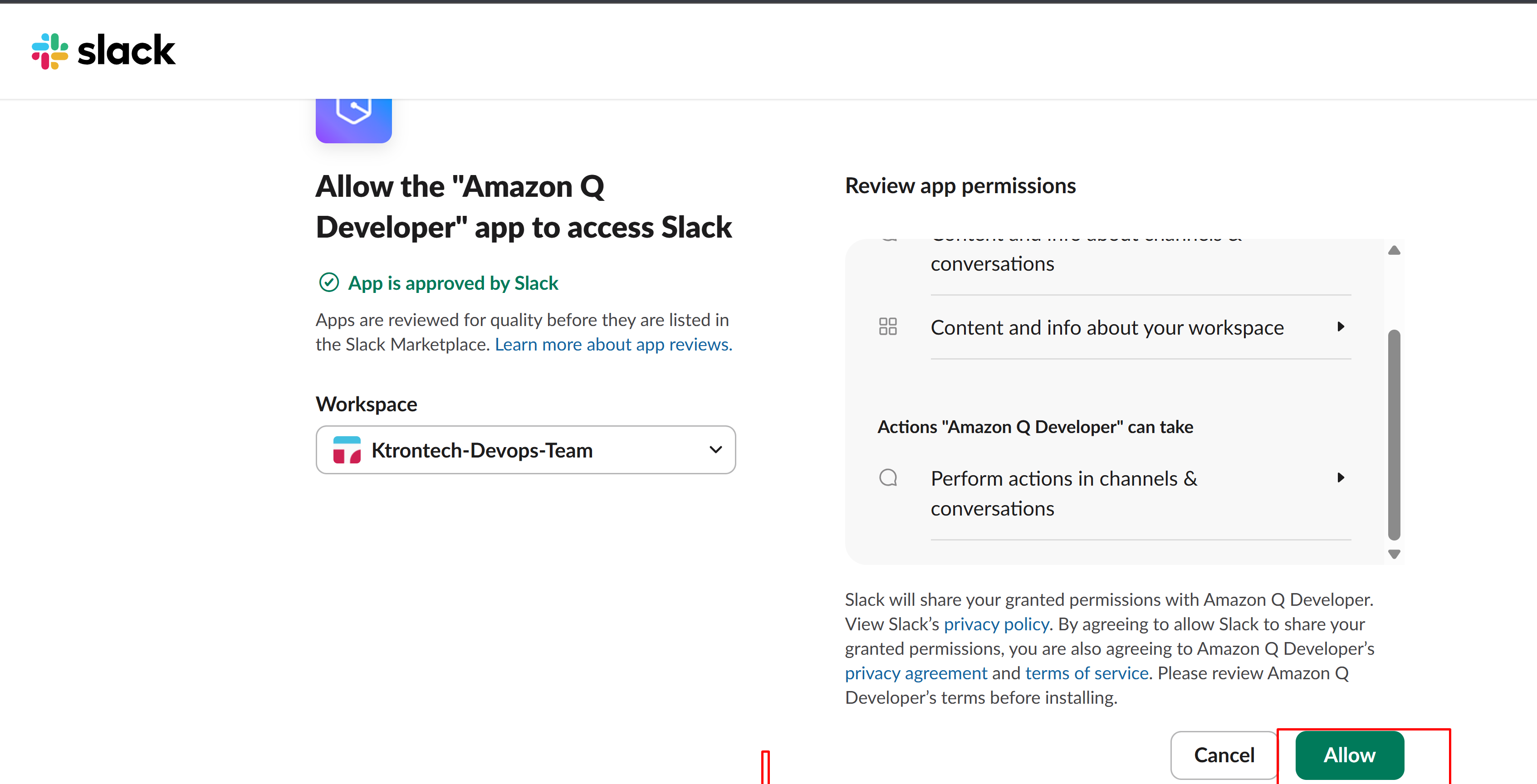
- Authorize Slack Workspace
- From the dropdown, select your Slack workspace
- Click “Allow” to authorize AWS Chatbot
- You’ll be redirected back to AWS Console
- Note Your Workspace ID
- After authorization, you’ll see “Workspace details”
- Copy the Workspace ID (starts with
T...) - Save this for reference
- Configure Slack Channel
- Click “Configure new channel”
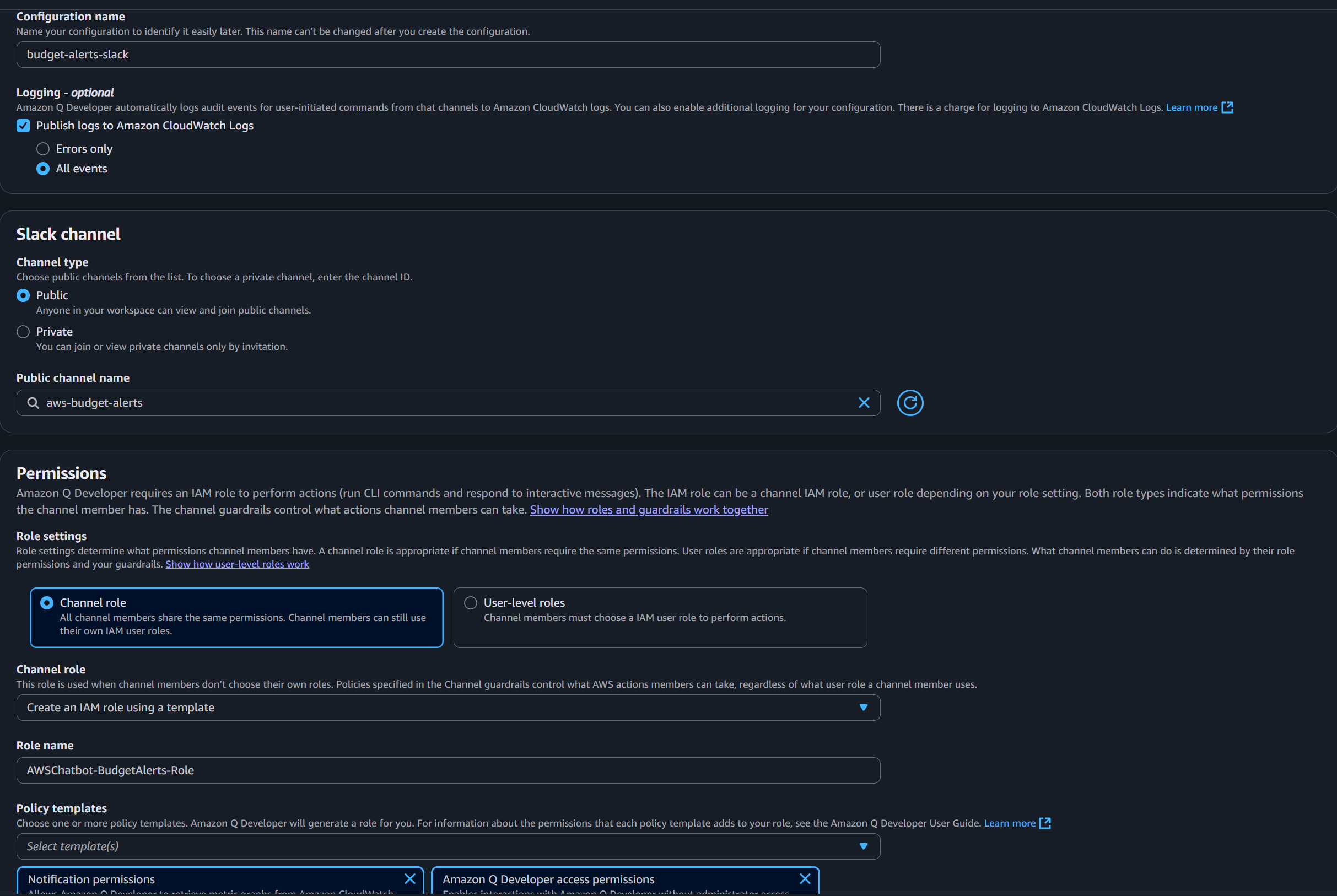
- Configuration name:
budget-alerts-slack(must be unique in your account)Logging: Enable “Publish logs to Amazon CloudWatch Logs” (recommended)
- Channel type: Choose “Public” or “Private”
- For Public: Select your channel from dropdown
- For Private: Paste the Channel ID you copied earlier in “Channel URL” field
- Configure PermissionsRole setting: Choose “Channel IAM role” (recommended) Channel IAM role:
- Select “Create new role”Role name:
AWSChatbot-BudgetAlerts-Role
- Select “Notification permissions”
- This provides read and list permissions for CloudWatch, SNS, and logs
- Select “Create new role”Role name:
- Configure SNS Topics: We’ll create the SNS topic in the next step, then come back to add it here.
- For now, click “Save” or “Create” to finish the channel configuration
Step 1.4: Create and Configure SNS Topic for Budget Alerts
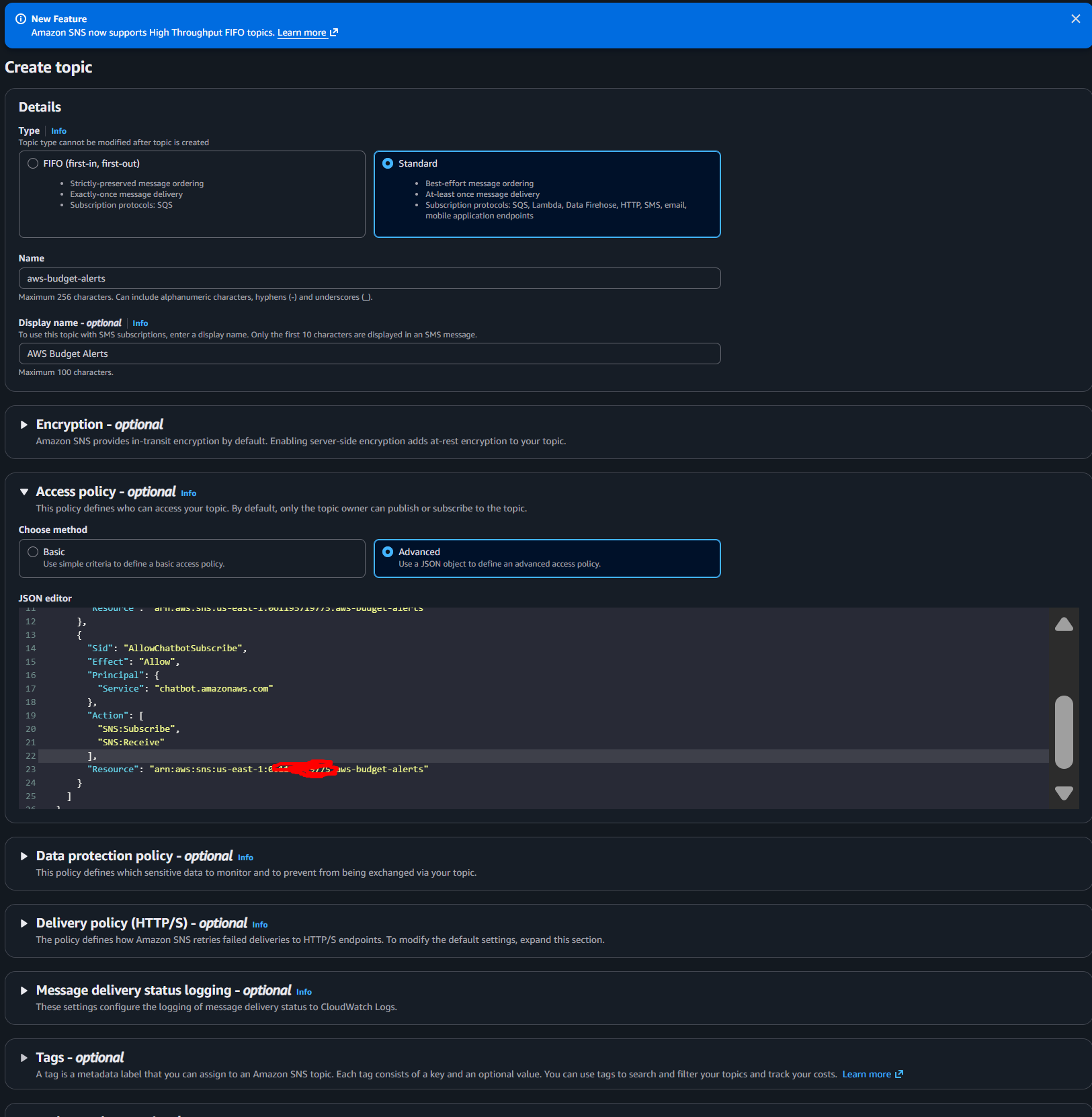
- Create SNS Topic
- Go to Amazon SNS consoleClick “Topics” → “Create topic”
- Type: Standard
- Name:
aws-budget-alerts - Display name:
AWS Budget Alerts
- Configure Access Policy Click “Edit” after creation, then update the access policy:
   {
     "Version": "2012-10-17",
     "Statement": [
       {
         "Sid": "AWSBudgetsPublish",
         "Effect": "Allow",
         "Principal": {
           "Service": "budgets.amazonaws.com"
         },
         "Action": "SNS:Publish",
         "Resource": "arn:aws:sns:REGION:ACCOUNT_ID:aws-budget-alerts"
       },
       {
         "Sid": "AllowChatbotSubscribe",
         "Effect": "Allow",
         "Principal": {
           "Service": "chatbot.amazonaws.com"
         },
         "Action": [
           "SNS:Subscribe",
           "SNS:Receive"
         ],
         "Resource": "arn:aws:sns:REGION:ACCOUNT_ID:aws-budget-alerts"
       }
     ]
   }
Replace:
REGION: Your AWS region (e.g.,us-east-1)ACCOUNT_ID: Your AWS account numberaws-budget-alerts: Your topic name if different
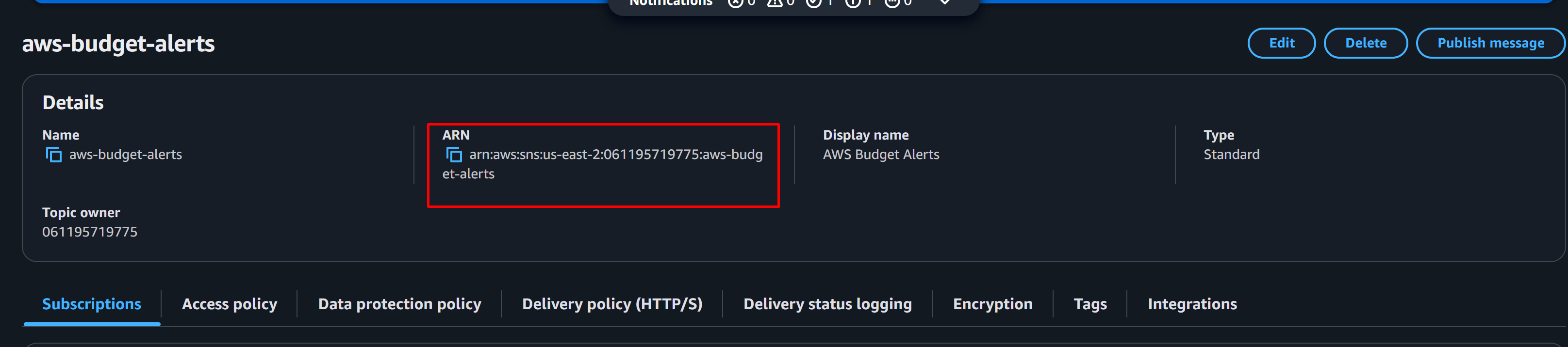
- Copy the SNS Topic ARN
- It looks like:
arn:aws:sns:us-east-1:123456789012:aws-budget-alerts - Save this for the next steps
- It looks like:
Step 1.5: Link SNS Topic to AWS Chatbot
- Return to AWS Chatbot Console
- Find your Slack channel configuration
- Click “Edit”
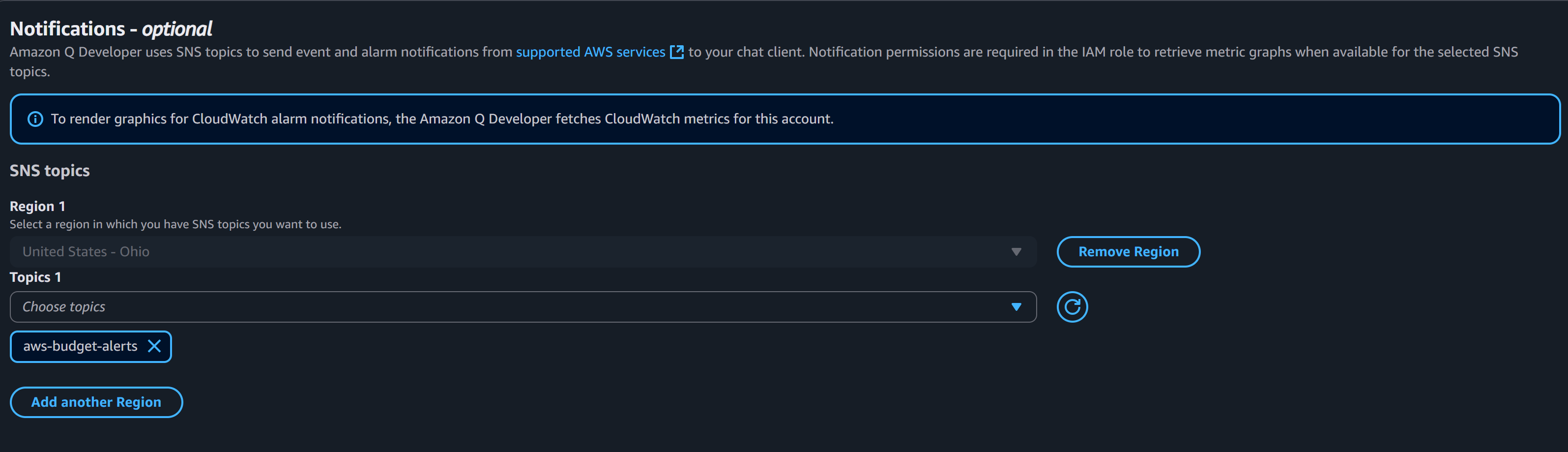
- Add SNS Topic
- In “SNS Region”, select your region
- In “SNS topics”, select
aws-budget-alerts - Click “Save”
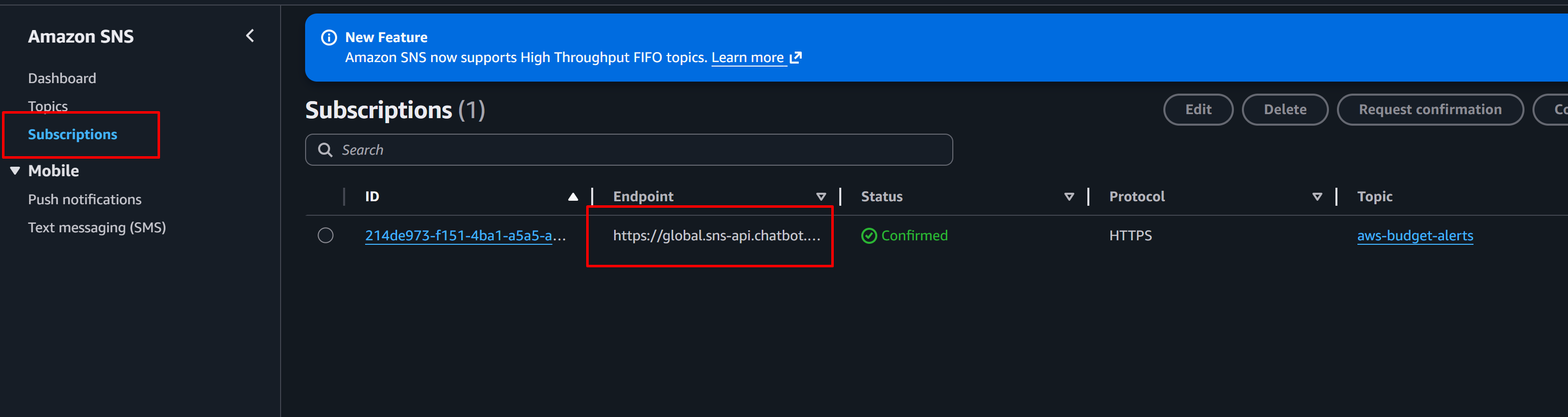
- Verify Subscription
- Go back to SNS console
- Click on your topic
aws-budget-alerts - Go to “Subscriptions” tab
- You should see a subscription with “AWS Chatbot” as the endpoint
- Status should be “Confirmed”
Step 1.6: Configure Budget Alert Thresholds
Now let’s connect your budget to the SNS topic.
- Go to AWS Budgets Console
- Find your budget
- Click “Edit”
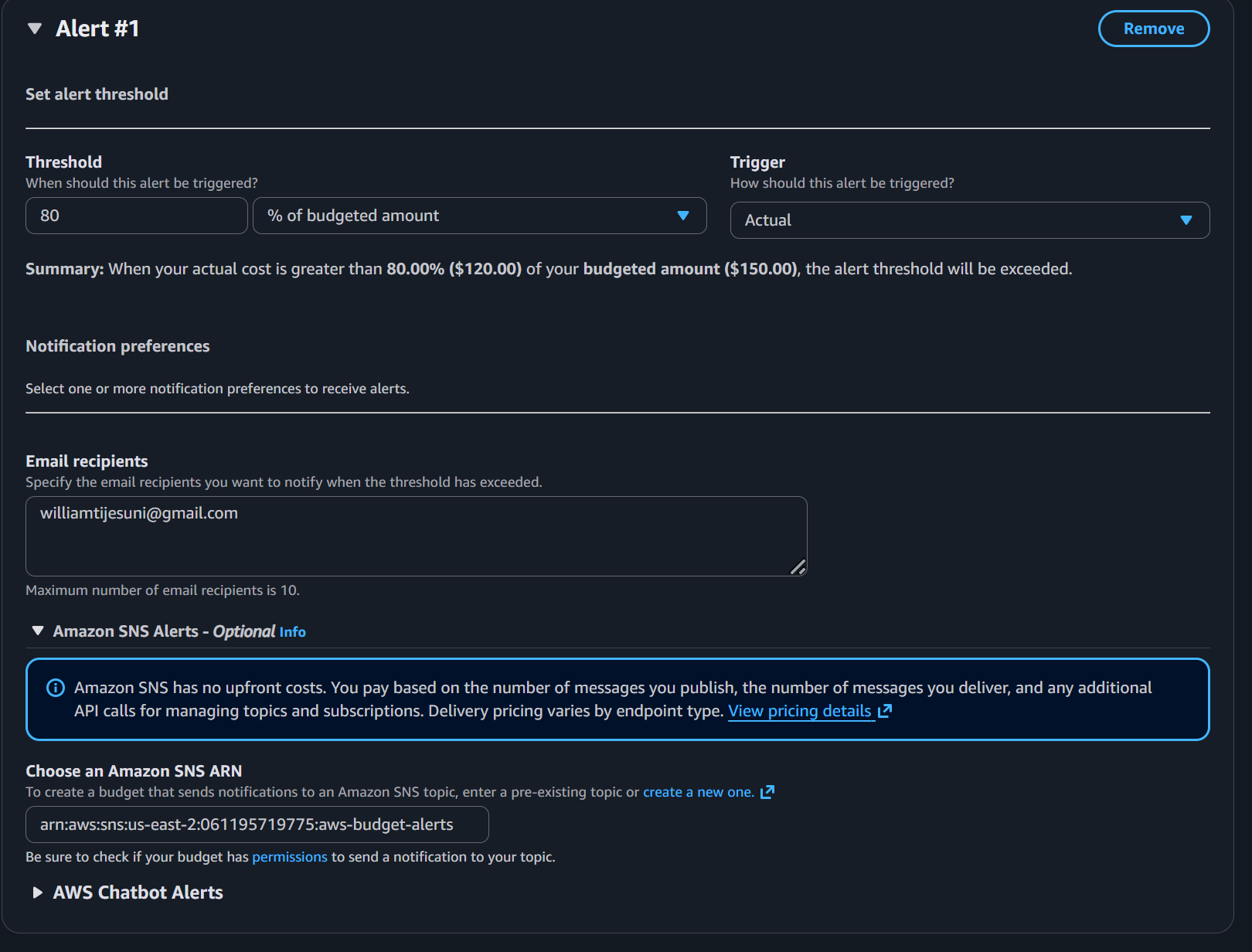
- Configure Alert Thresholds
- Scroll to “Configure alerts”
- Click “Add an alert threshold”
- Create First Alert (80% Actual Spend)Alert 1:
- Threshold:
80% - Threshold type: Actual (costs you’ve already incurred)
- Email recipients: Your email (optional)
- Amazon SNS alerts: Select your SNS topic ARN
aws-budget-alerts
- Threshold:
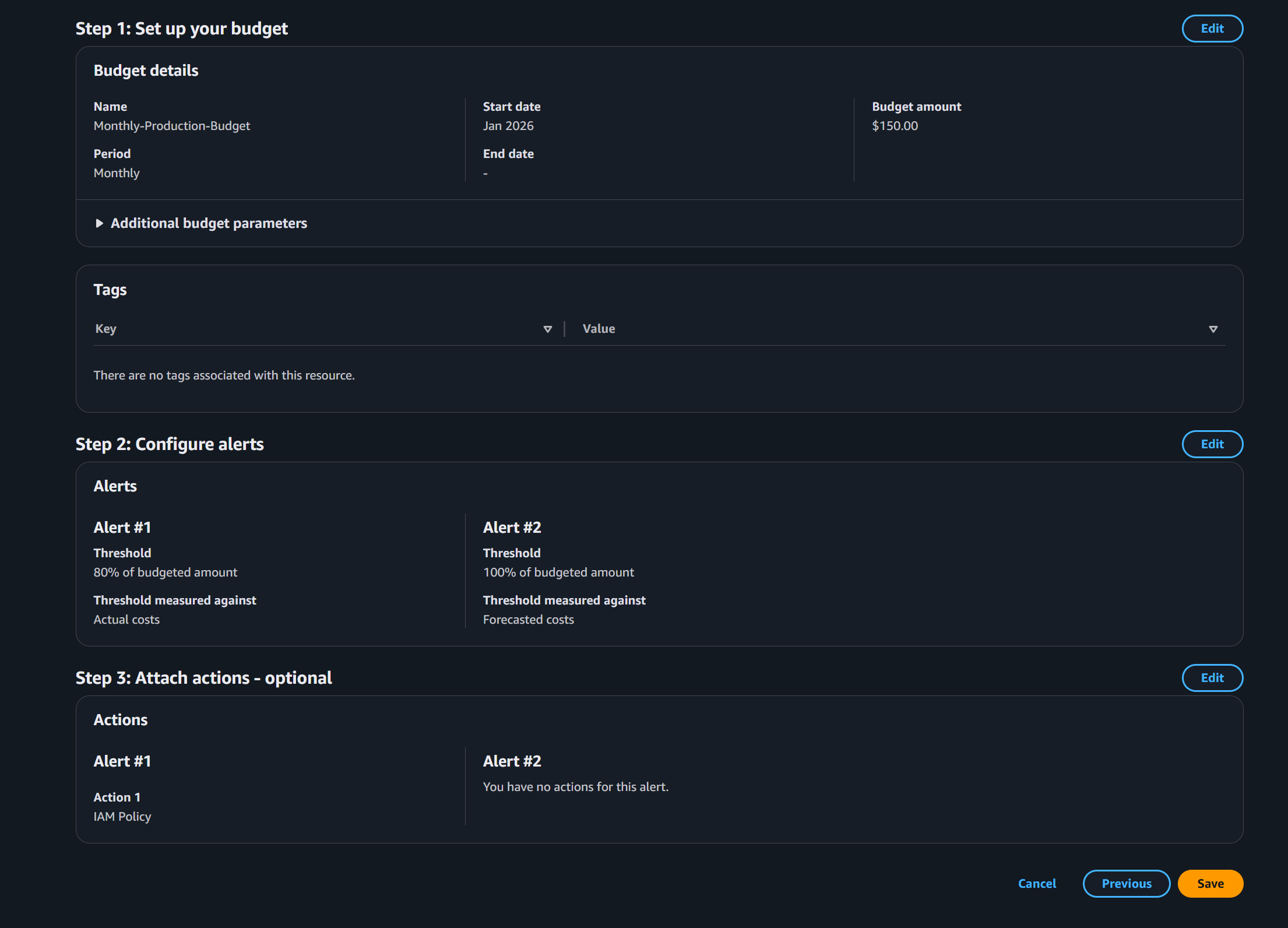
- Create Second Alert (100% Forecasted Spend) Click “Add another alert threshold” Alert 2:
- Threshold:
100% - Threshold type: Forecasted (predicted costs by month end)
- Amazon SNS alerts: Select your SNS topic ARN
aws-budget-alerts
- Threshold:
- Save the Budget
Step 1.7: Test Slack Notifications
Test via SNS
- Go to SNS Console
- Select your topic
aws-budget-alerts - Click “Publish message”
- Select your topic
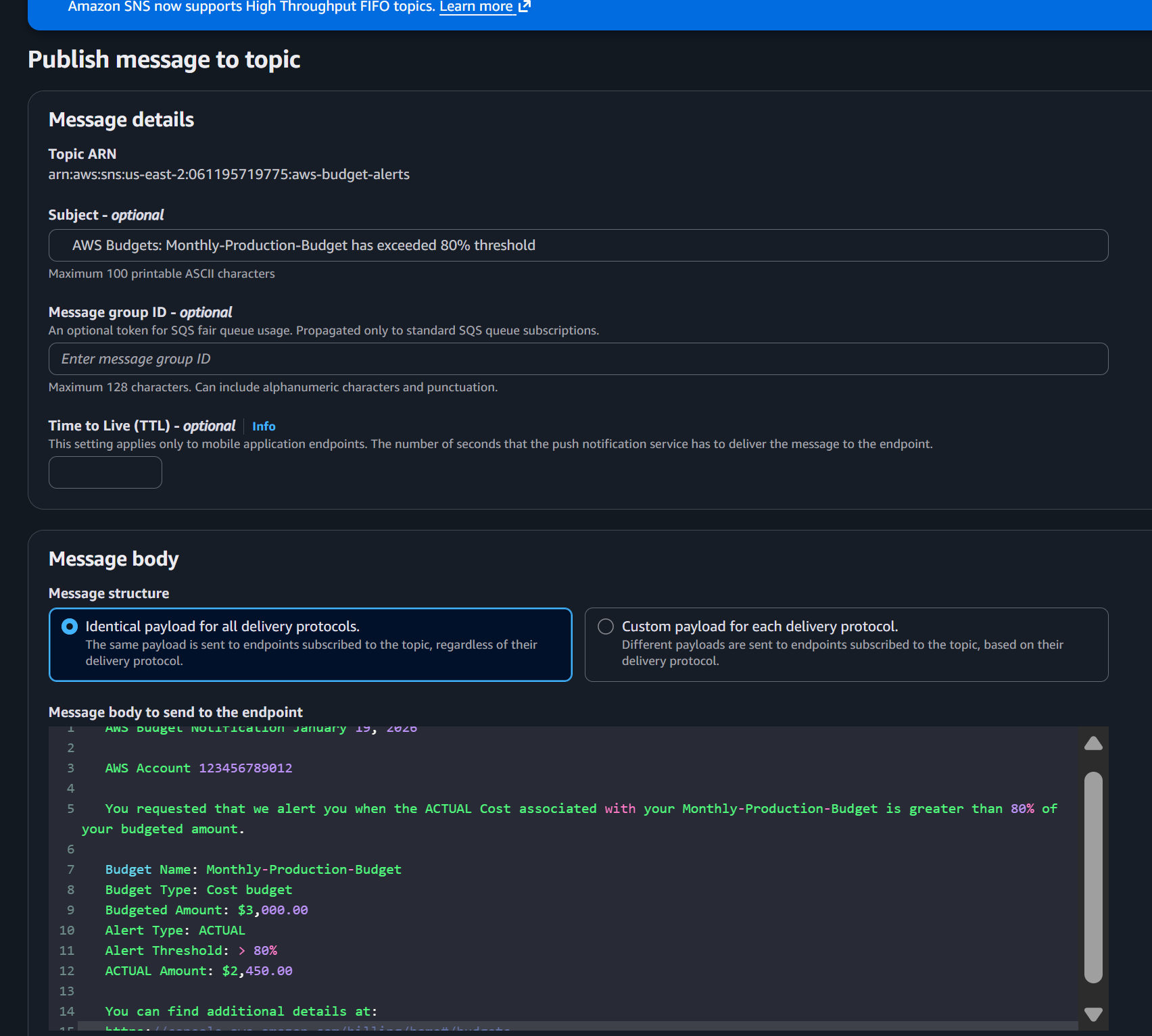
- Create Test Message Subject:
AWS Budgets: Monthly-Production-Budget has exceeded 80% threshold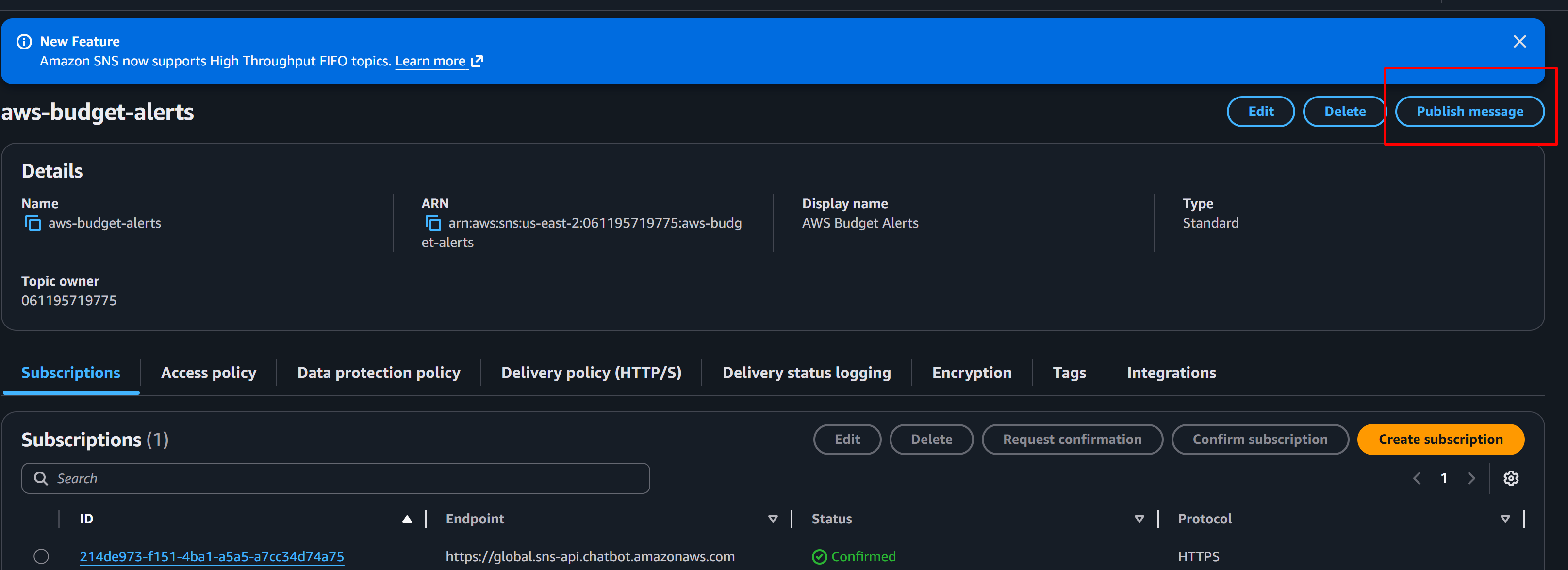
Message body:
   AWS Budget Notification January 19, 2026

   AWS Account 123456789012

   You requested that we alert you when the ACTUAL Cost associated with your Monthly-Production-Budget is greater than 80% of your budgeted amount.

   Budget Name: Monthly-Production-Budget
   Budget Type: Cost budget
   Budgeted Amount: $3,000.00
   Alert Type: ACTUAL
   Alert Threshold: > 80%
   ACTUAL Amount: $2,450.00

   You can find additional details at:
https://console.aws.amazon.com/billing/home#/budgets- Publish the Message
- Check Slack
- Within 30-60 seconds, you should see a notification in your
#aws-budget-alertschannel - AWS Chatbot formats the message nicely with colors and formatting
- Within 30-60 seconds, you should see a notification in your
Expected Slack Message
You should see something like:
AWS Budget NotificationAWS Budgets: Monthly-Production-Budget has exceeded 80% thresholdAWS Account 123456789012Budget Name: Monthly-Production-BudgetBudget Type: Cost budgetBudgeted Amount: $3,000.00Alert Type: ACTUALAlert Threshold: > 80%ACTUAL Amount: $2,450.00[View in Console]Step 1.8: Invite AWS Chatbot to Your Slack Channel
For the bot to send messages:
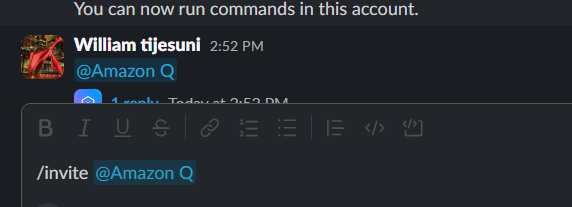
- In Slack, type:
/invite @Amazon Q- Or manually:
- Click on channel details
- Click “Integrations”
- Click “Add apps”
- Search for “AWS”
- Add to channel
Testing The Channels
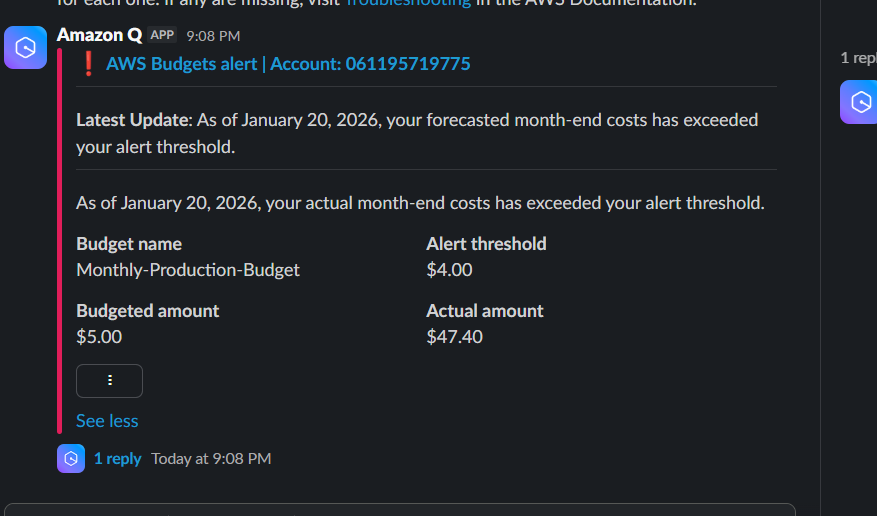
I tested this by reducing the budget to a lower value that I have currently Spent and I get the notification from my App
Advanced Configurations
Multiple Slack Channels
Send different alerts to different channels:
- Create multiple AWS Chatbot configurations
#aws-budget-criticalfor high-priority alerts#aws-budget-warningsfor lower thresholds#finance-teamfor executive summaries
- Create separate SNS topics
critical-budget-alertswarning-budget-alerts
- Configure different budget thresholds to publish to different topics
Summary & Next Steps
What You’ve Accomplished
Congratulations! You now have a comprehensive FinOps alerting system with:
AWS Budgets monitoring your cloud spending
Slack notifications for team collaboration and visibility
Multi-threshold alerts (actual and forecasted spending)
Automated monitoring that runs 24/7
Your Alert Flow
Spending Threshold Exceeded ↓AWS Budgets detects it ↓ ┌──┴──┐ ↓ ↓Slack → Team sees and discusses




 Adedeji Awolesi
Leave a comment