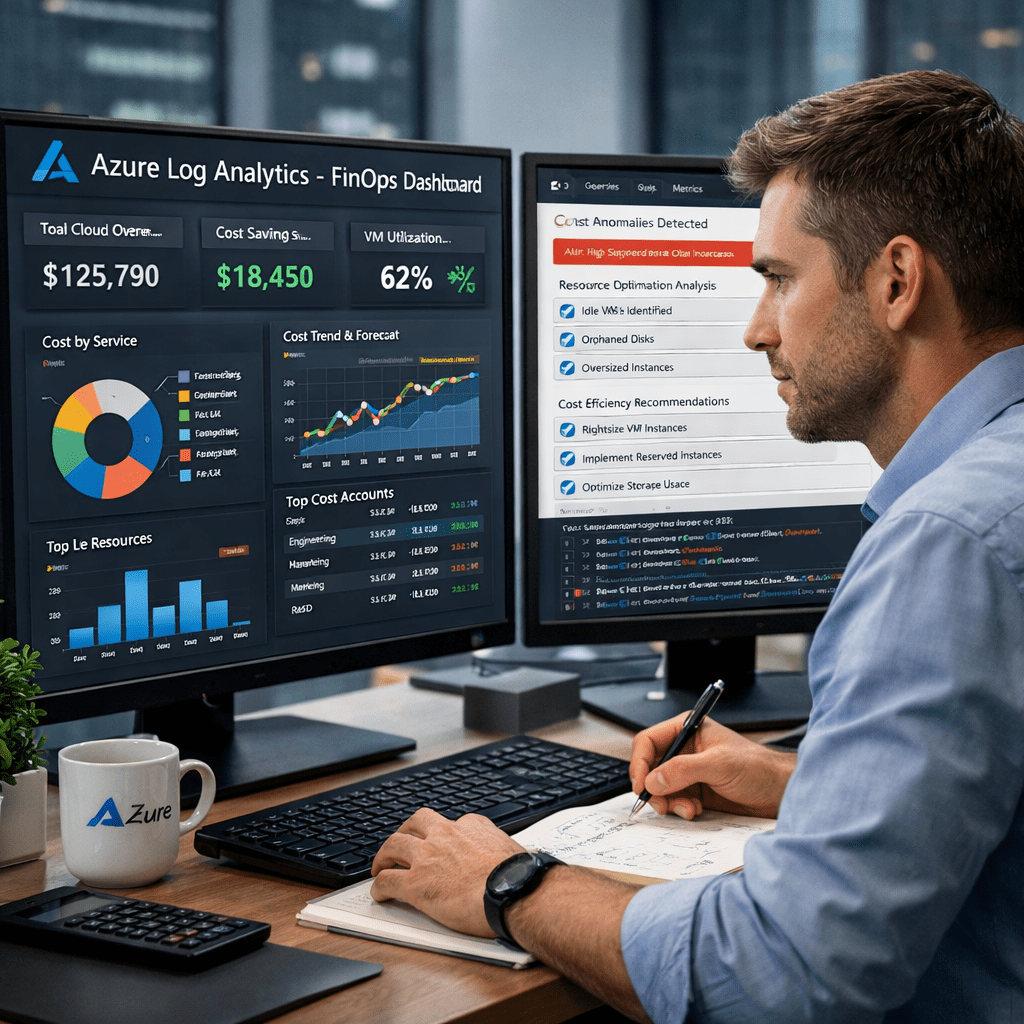
In FinOps, there is a rule I keep coming back to: you cannot optimise what you do not understand. Not really. You can cut things blindly, but that is not optimisation, that is guessing with consequences.
The Bill That Surprised Everyone
I have been in Azure subscriptions where Log Analytics Workspaces were quietly responsible for 90% of the monthly bill. Not virtual machines. Not databases. Not fancy AI services. Just logs. A service most people set up once and never revisit.
And that is the trap. Log Analytics does not feel expensive when you turn it on. You connect a few resources, some diagnostic settings get wired up, and suddenly everything is flowing into your workspace. It feels productive. It feels like good observability practice. And then the invoice arrives.
The problem is not that Log Analytics is broken or badly designed. The problem is that most teams do not understand what they are actually paying for. And when you do not understand a service, you cannot ask the right questions. You just pay the bill and move on.
What Log Analytics Actually Is
Think of a Log Analytics Workspace like a large warehouse where your Azure resources drop off boxes of information every few minutes. Every time your app handles a request, every time a virtual machine checks in, every time a Kubernetes container writes something to its output, that information gets boxed up and shipped to the warehouse. Azure charges you for every gigabyte that lands there.
Imagine your workplace has a filing room. Every department is allowed to file documents there. But nobody set any rules. Sales files every email. Engineering files every debug message. Finance files every automated notification. After six months the room is full and you are paying for extra storage, and 80% of what is in there nobody has ever opened.
That is exactly what happens with an unconfigured Log Analytics Workspace. It does not care whether your data is valuable. It does not care whether anyone ever queries it. You pay for what arrives, and you pay for how long it stays. This is why understanding the service is not optional. It is the job.
The Metrics That Actually Matter
Once you understand what Log Analytics is doing, you start asking different questions. Not “why is my bill high?” but specific, precise questions that lead to specific, precise actions.
“The engineer who understands the service reads the bill in a completely different language.”
| Metric | What It Tells You | Why It Matters |
|---|---|---|
| Ingestion by DataType (GB) | Which table is eating the most space | ContainerLog and SecurityEvent are the usual culprits |
| Average Daily GB | How much comes in per day on average | Determines if commitment tier discounts apply |
| Retention Days (per table) | How long data sits in hot storage | Hot storage costs 5x more than archive tier |
| AppTraces Severity Breakdown | How many logs are Verbose vs Warning vs Error | Verbose logs are often 70% of app log volume and near-zero value |
| Price Per GB (by region) | Your actual per-GB rate for this workspace | Brazil South costs ~80% more than East US for the same data |
These are not abstract concepts. Each one maps directly to a line on your invoice. When you know what you are looking at, you know exactly where to apply pressure.
The Common Wastes Nobody Warns You About
Verbose application logs. Apps running in production with their log level set to Debug or Verbose. Every single internal operation gets written. This can easily be 70% of your AppTraces volume, and virtually none of it is ever queried in production. Setting the log level to Warning costs nothing and can halve your bill overnight.
AzureMetrics being sent to Log Analytics. Azure Monitor already stores your metrics for free. When a Diagnostic Setting also sends AzureMetrics to your workspace, you are paying to duplicate data that was already free. Remove the category from your Diagnostic Settings and the cost drops to zero.
Default workspace retention sitting at 90 days. Azure gives you 30 days of hot retention for free. After that, you pay $0.10 per GB per month. Move older data to archive tier at $0.02/GB/month and you cut that retention cost by 80%.
// Run this in your Log Analytics Workspace query editor
Usage
| where TimeGenerated > ago(30d)
| where IsBillable == true
| summarize TotalGB = round(sum(Quantity) / 1000, 2) by DataType
| order by TotalGB desc
Run that query right now in your workspace. Whatever is at the top, that is where your investigation starts. You now know which table to look at, and knowing that, you can go and understand exactly what is feeding it and why.
Container logs with no namespace filtering. In AKS environments, the kube-system namespace is one of the noisiest things in the entire cluster. Excluding those namespaces in the Container Insights ConfigMap is a ten-minute change that routinely cuts ContainerLog volume by 60%.
Why Understanding Comes Before Cutting
A FinOps engineer who does not understand the service they are looking at will make one of two mistakes. Either they cut too little, they see the big number and move on because they do not know where to start. Or they cut too much, they delete a Diagnostic Setting that was quietly feeding a security alert nobody noticed was gone until something bad happened.
You would not walk into a hospital and start switching off machines to save on the electricity bill without understanding what each machine does. Log Analytics is not that dramatic, but the principle is the same. Know the service. Know what depends on it. Then make the cut with confidence.
Understanding the service means you know the difference between ContainerLog, which is safe to filter aggressively, and SecurityEvent, which needs careful handling because compliance teams may depend on it. It also means you know that Heartbeat data is one record per minute per connected machine. With 200 machines, that is 288,000 records a day before a single application has written a single log line.
What Commitment Tiers Are (And Why Most People Miss Them)
If your workspace is ingesting more than 100 GB per day, Azure will give you a discounted rate, but only if you ask for it. These are called Commitment Tiers. Think of it like a mobile data plan: pay-as-you-go is fine if you use a little, but if you use a lot every month, the monthly plan almost always wins.
| Daily Volume | Pay-as-you-go | Commitment Tier | Saving |
|---|---|---|---|
| Under 100 GB/day | $2.76/GB | N/A | Stay on PAYG |
| 100 to 199 GB/day | $2.76/GB | $1.96/GB | ~29% saved |
| 200 to 299 GB/day | $2.76/GB | $1.86/GB | ~33% saved |
| 300 to 499 GB/day | $2.76/GB | $1.76/GB | ~36% saved |
The switch itself takes about three clicks in the Azure Portal. The challenge is knowing that it exists, knowing how to measure your daily average, and knowing it is the right lever given your ingestion pattern. That knowledge only comes from understanding the service.
Understanding Is The Work
Practising FinOps has taught me that the most powerful thing you can do before you open a cost dashboard is sit with the service and actually learn it. Read the pricing page. Run the KQL queries. Look at what is in each table. Follow the data from the source, the application, the agent, the Diagnostic Setting, all the way to the workspace. Understand the journey the data takes before it becomes a line on your bill.
When you understand Log Analytics at that level, something changes. The bill stops being a mystery and becomes a readout. You look at a high ingestion number and you already know three possible causes. You look at a long retention policy and you immediately know what it is costing per month. You look at an AppTraces table and you know the first question to ask is what the application log level is set to.
“The right question, asked by someone who understands the service, is worth more than any dashboard.”
That understanding is what lets you optimise, whether you are doing it manually, walking through the Azure Portal table by table, or whether you are running a script that analyses every workspace across every subscription in your estate in one pass. The script does not replace the understanding. It applies it at scale.
Know the service. Know the metrics. Know what each number means in real terms. That is where FinOps actually lives, not in the tooling, not in the dashboards, but in the engineer who can read what the numbers are saying and knows exactly what to do next.
Whether you are checking costs manually through the Azure Portal or running automated scripts across your entire subscription estate, the understanding comes first. The tool is only as good as the person wielding it. Learn the service, and the optimisation follows naturally.






 Adedeji Awolesi
Leave a comment